Baby Photo Editing Basics on Your Phone: A Gentle Six-Step Guide
A gentle six-step way to edit baby photos on your phone: crop, brightness, colour, shadows, light sharpening and what to leave alone, with free tools and contest tips from VoteMyBaby.

Rahul Thakur writes the parenting and photography guides on VoteMyBaby, covering simple baby photo tips, safe photoshoot ideas and how the free baby photo contest works.
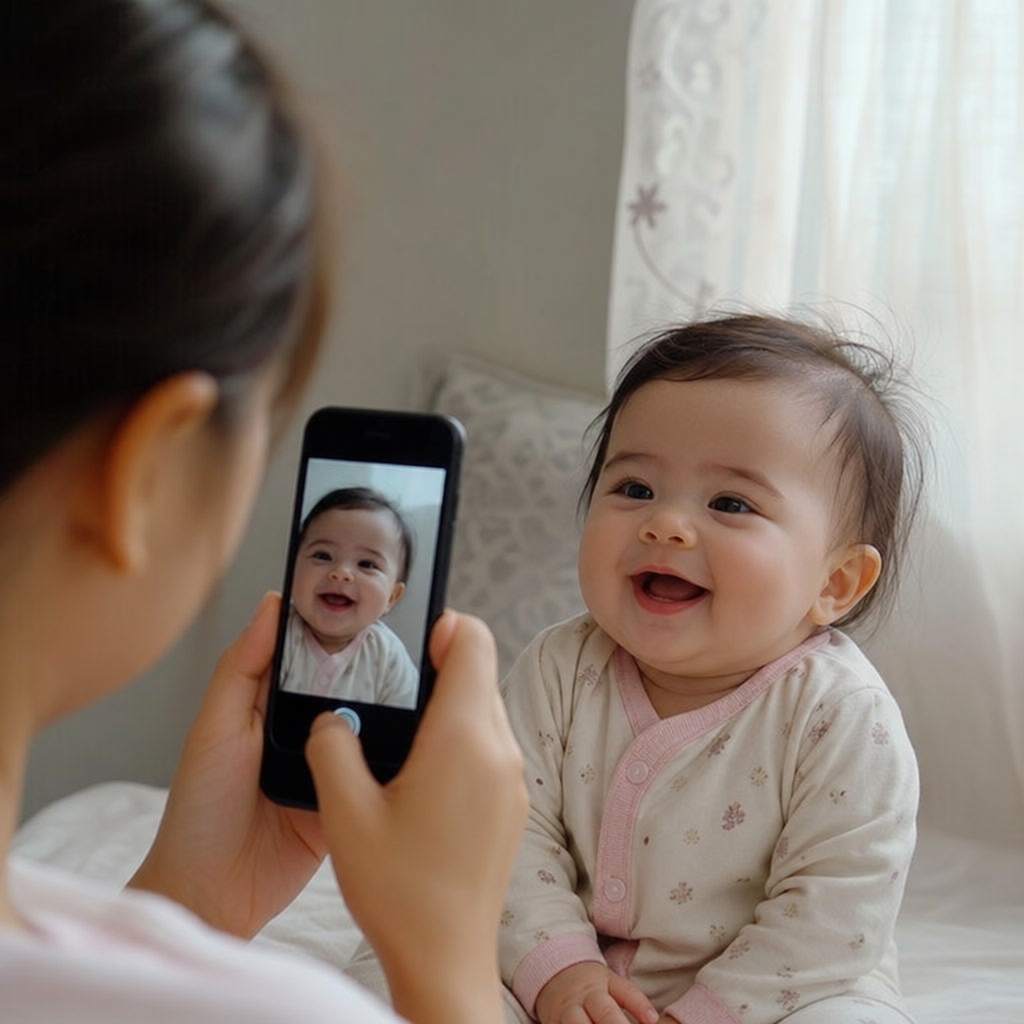
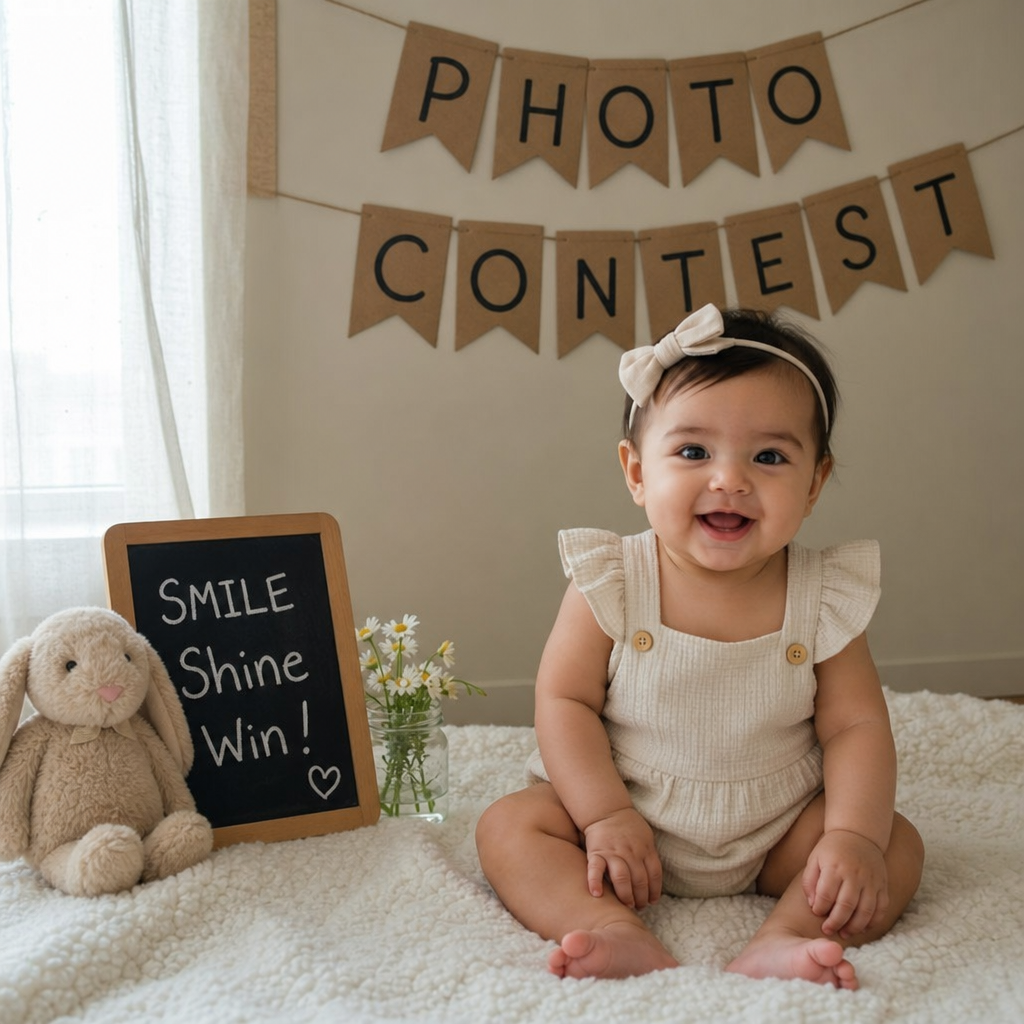
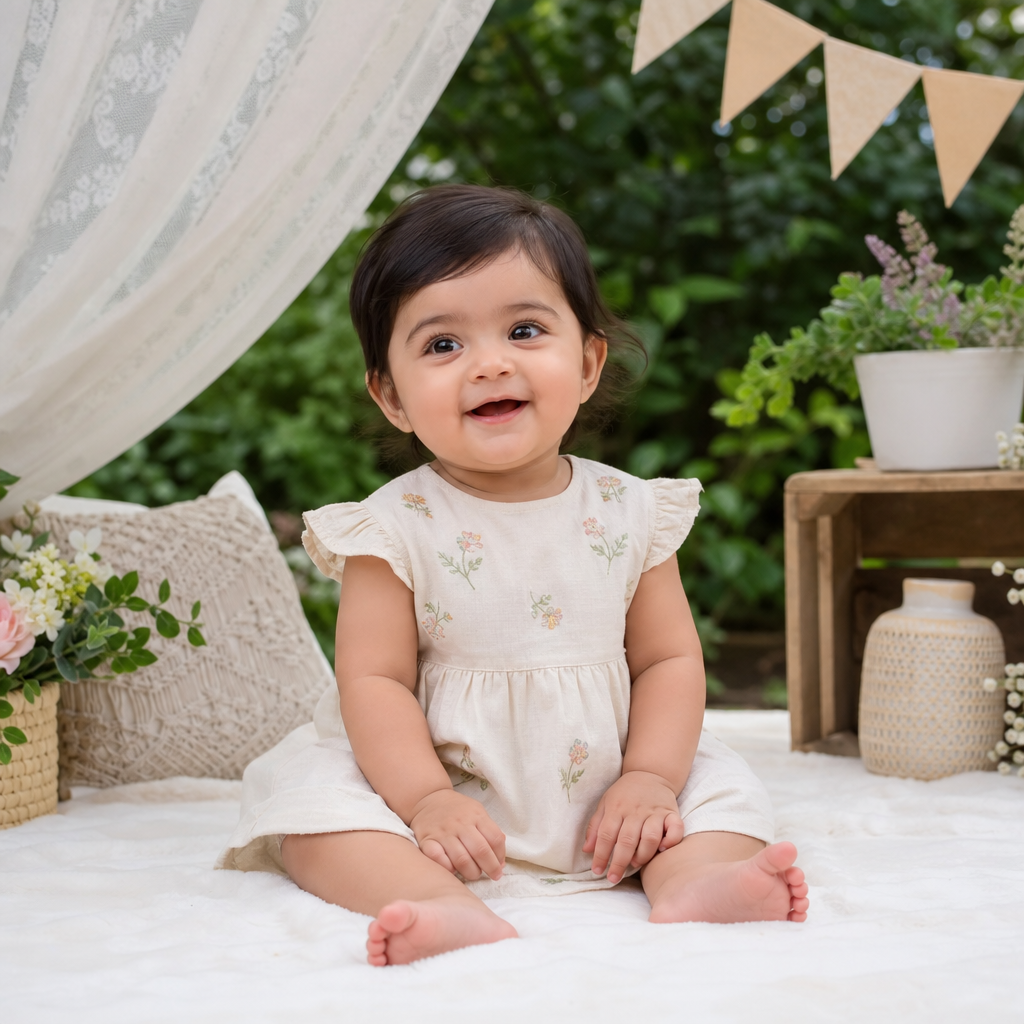
A good baby photo rarely needs much editing. Most of the time it needs about two minutes: a straighter horizon, a little more light, and colours that look like the room did. The danger is going too far. Heavy filters and skin smoothing turn a real, squishy baby into a plastic doll, and they also tend to break contest rules. This guide shows a simple, gentle editing routine you can do on any phone, using the free editor that came with it or a free app, plus what to leave alone.
First, keep the original
Before you touch a slider, make sure the untouched photo is saved. Most phone editors keep the original and let you undo changes later, but check once. If you ever want to re-crop, enter a different contest or print the photo, you’ll be glad you have the full-size file. Our guide to backing up and organising baby photos explains how to keep originals safe.
It also helps to start with a photo that’s already sharp and well lit. Editing can polish a good photo but it can’t rescue a blurry one, so if your shots are often soft, read how to take sharp baby photos on a phone and our guide to window light.
The six-step gentle edit
Work in this order. Each step is small, and you should stop as soon as the photo looks like your baby on a good day.
1. Crop and straighten
Cropping is the most powerful edit and costs nothing in quality if the photo is large. Straighten any tilted lines first, such as a door frame or the edge of a blanket. Then crop to put your baby’s eyes near the upper third of the frame and remove distractions at the edges, like a toy, a cable or someone’s elbow. Avoid cutting through fingers, toes or the top of the head unless you’re deliberately close. If you plan to post on social media or upload to a contest, check the recommended shape first; a portrait or square crop usually works best on phones. Our composition tips explain why the eyes matter.
2. Fix the brightness
Many baby photos come out slightly dark, especially indoors. Raise the exposure or brightness a little until your baby’s face looks natural, but watch the brightest areas such as a white blanket or a window. If they turn flat white with no detail, you’ve gone too far. Pull the highlights down slightly if your editor has that slider. Remember that your screen brightness changes how a photo looks, so set your phone to a normal level before editing.
3. Correct the colour
Indoor bulbs often make skin look yellow or green. Use the warmth or temperature slider to move the photo toward a neutral look: if skin looks orange, make it cooler, and if it looks blue or grey, make it warmer. A simple test is to find something that should be white, like a onesie or a wall, and adjust until it looks white. Small changes work best, because strong colour shifts make skin tones look unreal.
4. Lift the shadows and add a touch of contrast
If your baby’s face is in shade, raising the shadows slider reveals detail in eyes and cheeks. A touch of contrast can make a flat photo feel less muddy, but baby skin is soft, so keep contrast gentle. If you find yourself pushing sliders past the halfway mark, try a different photo from your burst instead.
5. Sharpen very lightly
A tiny amount of sharpening helps eyes and eyelashes stand out. Too much creates crunchy edges and makes skin look rough. Zoom in to 100 per cent on the eyes while you adjust, and stop when they look clear but not harsh. If the photo has visible grain from low light, a small amount of noise reduction helps, but too much makes everything look smeared.
6. Leave skin and features alone
Skip skin smoothing, face reshaping, eye enlarging and “beauty” modes. Babies’ own features, including cradle cap, birthmarks and baby acne, are part of who they are and part of why people respond to the photo. Retouching them removes the very thing viewers connect with. If something temporary like a scratch or a drool patch bothers you, a simple spot-fix tool is fine, but leave the rest.
What to avoid
- Heavy filters. They change skin tone and hide detail, and they look dated quickly.
- Text, stickers, borders and watermarks. VoteMyBaby asks for the original photo without these, and other contests often do too. See the Official Contest Rules.
- Black and white as a way to hide problems. It can look lovely, but use it because you like it, not to cover bad light.
- Over-editing a photo you plan to compare to other entries. A natural photo usually looks better next to heavily edited ones.
Free tools that do the job
You probably already have what you need. The editor built into your phone’s gallery or photos app handles cropping, brightness, colour and shadows. Free apps such as Google Photos and Snapseed offer similar controls, with a few more advanced tools. Features and prices change, so check each app’s current options before relying on any one of them. Pick one tool and learn it well rather than switching often; the six steps above work in all of them.
A two-minute routine
| Step | What to do | Time |
|---|---|---|
| Check | Original saved and the photo is sharp | 10 seconds |
| Crop | Straighten, place the eyes high, remove clutter | 30 seconds |
| Light | Brighten slightly, protect highlights, lift shadows | 30 seconds |
| Colour | Make whites look white | 20 seconds |
| Finish | Tiny sharpen, then look at it on a different screen | 30 seconds |
Before you share or enter a contest
Look at the edited photo next to the original. If your baby looks recognisably like themselves, you’ve edited well. Also check what the photo shows beyond your child, such as a house number, a school logo or a location sign; our privacy checklist lists what to remove. If you’d like help choosing which photo to submit, read our tips on choosing a strong contest photo and candid versus posed photos. When you’re ready, the participation page is where to enter your child, aged 0 to 10, in the free contest.
Common questions
Is it okay to edit a contest photo? Light editing such as cropping and brightness is common, but rules differ between contests, so always read them first. Avoid anything that changes how your child looks.
Do I need a paid app? No. The editor on your phone and a free app are enough for everything in this guide.
How do I stop overdoing it? Make each change small, then put the phone down for a minute and look again. If the photo looks more like a filter than a baby, undo the last step.
Ready to celebrate your little star?
Submit your baby's photo to our free one-month contest. The Top 3 receive Gift Hampers with Gold, Silver or Bronze Certificates; Ranks 4–5 receive Ranked Certificates with Amazon Pay Gift Cards; Ranks 6–10 receive Special Rank Certifications; Rank 11+ receives a Basic Rank Certification.